Home Assistant
- 4.1
- Rating
- 1.00M
- Installs
- Free
- Price

 Analysis by App-foxy
I approached Home Assistant as someone who wanted one practical place for home control rather than another collection of disconnected device apps. It is the official mobile app from Home Assistant, a free House & Home app for Android and iOS that lets you interact with a Home Assistant setup while you are at home or away. My first impression was that it is much more powerful than its short store description suggests, but that power comes with a learning curve that is worth understanding before you install it.
The app is best viewed as a remote control and companion for a broader Home Assistant system, not as a complete smart-home solution that magically discovers and manages everything on its own. If you already use Home Assistant, the app gives you a convenient mobile window into your home. If you are completely new, it can still be a good starting point, but your first meaningful result depends on having a Home Assistant instance and at least one connected device or service ready to use.
What to expect before opening the app
Home Assistant is developed by Home Assistant and has been available since November 12, 2019. It is free to use as an app, carries an Everyone age rating, and has passed the million-install mark. Its average rating is 4.1 from roughly thirteen thousand ratings, with just over five hundred written reviews. Those figures suggest a mature, widely used companion app, but they also hint at the mixed experience newcomers can have: the app itself is capable, while the surrounding setup is more involved than a typical plug-and-play home appliance application.
You May Also Like

 AccuWeather: Weather Radar
AccuWeather Review: A Quick, Clear Forecast for Everyday Decisions
For everyday plans, the best forecast is the one you can understand quickly. AccuWeather makes rain timing, radar, and local conditions easy to act on, with a few trade-offs.

 Hill Climb Racing
Why Hill Climb Racing Still Turns Crashes Into One More Run
A tiny car, a bumpy hill and one more upgrade: Hill Climb Racing keeps resurfacing because its simple chaos makes every near-miss feel personal.

 AliExpress - Shopping App
AliExpress Makes Global Shopping Feel Personal, but Shoppers Bear the Risk
AliExpress turns a global marketplace into a pocket-sized discovery engine. Its reach is useful, its shopping loop compelling, and its trade-offs easy to miss.

 Lords Mobile: Kingdom Wars
Lords Mobile Is a Kingdom-Building Routine, Not a Quick Match
A case-by-case verdict on the building, battles, device demands, and social commitments that make Lords Mobile rewarding for some players and exhausting for others.

 PDF Scanner app - TapScanner
TapScanner Makes Paperwork Easier to Capture, Check, and Share
TapScanner makes scanning with a phone feel less like a rescue operation and more like a dependable step in getting work done. Its capture tools are useful, though not flawless.

 Block Blast!
 Shows How Much a Puzzle Game Can Leave Out
A quiet grid game shows why puzzle players increasingly value instant clarity, repeatable skill and low-pressure play—and where the genre still needs to catch up.
More From Our News Desk
View All News


In everyday use, I would put it in a different group from simple brand apps. A thermostat, camera, bulb, or robot vacuum application usually focuses on one manufacturer's products and guides you through a narrow setup. Home Assistant is designed to bring different parts of a home into one interface. That makes it more flexible, but it also means the quality of your experience depends on how your home is organized, which integrations you use, and whether your devices are already visible to the Home Assistant server.
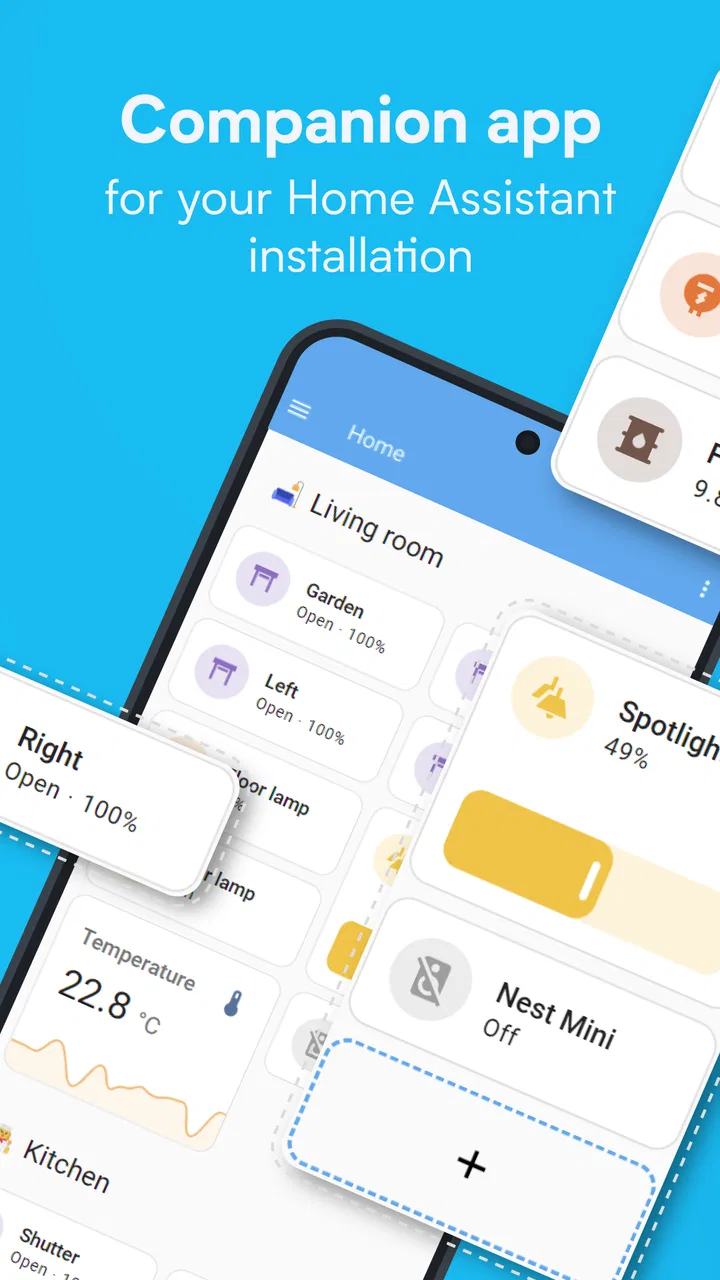
The app makes the most sense for people who want a central dashboard, quick access to several kinds of equipment, and the ability to check or control their home from outside. I found it especially useful when I wanted the same mobile interface for unrelated tasks: checking a sensor, changing a light, viewing a status, or triggering something I had already configured. Instead of remembering which manufacturer's app controls which item, I could start from one place.
That convenience should not be confused with simplicity. Home Assistant rewards curiosity. A person who enjoys adjusting dashboards and learning how devices relate to one another will probably appreciate it. Someone who only wants to install a light bulb and tap a large on/off button may be happier with the manufacturer's own app. The right choice depends less on the phone you use and more on how much control you want over the whole home.
Who will get the most from it
I would recommend it to a household with several smart-home products, especially when those products come from different brands or need to work together. It is also a good fit for someone who wants to monitor a home while traveling, provided the remote connection has already been configured through the Home Assistant setup. The mobile app becomes particularly valuable when the phone is the device you always have with you and you do not want to open several separate applications.
There are also less obvious users who may appreciate it. A family can use the app as a shared view of household status, while a technically confident renter can organize portable devices without committing to a single manufacturer's ecosystem. I also see value for someone who wants to start small: one useful device, one clear dashboard view, and one action that saves time each day is enough to make the app worthwhile.
I would hesitate to recommend it to a person who expects the app to supply hardware, automatically solve compatibility issues, or provide a polished guided path for every possible device. It is not the easiest option for a completely hands-off smart home. The flexibility that makes it attractive also means you may need to investigate why a device is unavailable, why a control is missing, or why a dashboard does not look the way you expected.
Getting through the first setup
The smoothest beginning is to prepare the Home Assistant side before relying on the phone app. Have your Home Assistant installation running, make sure at least one device or service is visible there, and know how you will connect the mobile app to that installation. Starting with a completely empty system can make the app feel unhelpful, when the real issue is that there is nothing meaningful for it to display yet.
When I set up a companion app like this, I prefer to begin with the smallest possible target. I would not try to organize every room, add every device, and design a perfect dashboard in one sitting. Instead, I would select one item I understand well, such as a light or a sensor, and make sure it appears correctly. This approach gives you a clear way to tell whether the connection works before you introduce more complicated devices or automations.
The first connection can feel confusing because the phone app is not the same thing as the Home Assistant server. The app needs to reach the place where your home data and controls are managed. If you install the app before that foundation is ready, you may see a connection screen without an obvious next step. That is normal for this kind of architecture, but it is not explained as plainly as it could be to a first-time user.
Once the app is connected, take a moment to identify the main areas rather than immediately changing settings. Look for the view where your entities or controls are presented, then find the mobile device itself in the Home Assistant system if you want phone-related information or actions later. A useful habit is to change one thing at a time and confirm the result in the real world. That prevents a setup mistake from becoming a chain of uncertain changes.
Remote access deserves special attention. Being able to control a home from outside is one of the reasons many people install the app, but it should be tested before you depend on it. Turn off your phone's local connection temporarily and check whether the app can still reach your Home Assistant installation. If it cannot, the problem may be the remote-access arrangement rather than the mobile interface. I would test this while at home, not for the first time during a trip.
Your first meaningful success
The best first win is a small action with an immediate, visible result. For example, choose one light that is already connected, open its control in the app, and switch it while standing in the same room. If the light responds, you have confirmed several important pieces at once: the home system can see the device, the app can communicate with the system, and the control you are using matches the physical result.
After that, repeat the same action from another part of the house rather than adding more complexity. I like this step because it tests whether the app is genuinely useful in daily life. If I can check a light or device without walking to it, I begin to understand the value of a central control surface. Only after that would I try the same control while away from home.
A sensor provides a different kind of first success. Open the relevant view and compare what the app reports with what you can observe directly. The point is not to chase perfect detail; it is to learn how Home Assistant represents a device's state. Once you understand that an item can expose status as well as a button, the app becomes easier to navigate and more useful for checking the home rather than merely issuing commands.
One practical tip is to make the first dashboard deliberately boring. Put the controls you use most often where they are easy to find, and leave less important information for later. A crowded screen can make a powerful system feel slow even when the underlying connection is fine. I get better results by building around routines: leaving the house, arriving home, checking a room, or confirming that something is off.
Where new users commonly get confused
The biggest source of confusion is the difference between a device, an entity, an area, and an automation. A physical lamp may appear through one or more controllable items; a room is an organizational label; and an automation is a rule that connects conditions with actions. The mobile app shows the results of that structure, but it does not always teach the structure in a beginner-friendly way. Learning those terms gradually makes troubleshooting much easier.
Another common misunderstanding is assuming that every device visible in a manufacturer's application will automatically behave the same way in Home Assistant. Compatibility and available controls can vary. A device may appear with only some functions, or a name may not match the label printed on the hardware. When that happens, I recommend checking the device's available controls before deciding that the connection has failed.
Names matter more than they seem. If several items have vague names, the app can become risky to use, particularly when you are controlling something remotely. I would rename items so that the room and purpose are obvious, then test each one. Clear naming is not glamorous, but it prevents the kind of mistake that makes a centralized system feel less trustworthy.
It is also easy to mistake a slow physical response for an app problem. A command may travel through the phone, the Home Assistant system, and the device's own connection. If a control does not respond immediately, I first check whether the device changes state after a short wait and whether another control works. Repeating taps can create confusion, especially with switches or actions that are not naturally reversible.
Notifications and phone-related functions can create another layer of uncertainty. The mobile app can be more than a remote button, but those features depend on how the Home Assistant side is configured and how the phone handles notifications and background activity. I would add one phone-related function only after the basic connection is reliable. Otherwise, it becomes difficult to tell whether a problem comes from the app, the server, or the phone's own settings.
Useful workflows beyond simple remote control
One of the strongest practical ideas is to use the app as a confirmation tool rather than only as a command panel. Before leaving home, I can check the status of selected devices in one place instead of visiting each room. This is more useful than a collection of isolated manufacturer apps because the question is not “which brand controls this?” but “is the home ready for me to leave?”
A second workflow is building a small arrival or departure view. I would keep it focused on the few things that matter during that transition: lighting, a lock or security-related state if configured, climate information, and any sensor that tells me whether something needs attention. The trade-off is that a highly customized view takes time to maintain. The reward is a screen shaped around a real routine rather than a catalogue of every available device.
A third insight is to separate monitoring from control. Not every item needs a large button. A temperature reading, door state, or power-related status may be more useful as a quiet piece of information than as an action. When I organize the app this way, I am less likely to tap something accidentally and more likely to notice changes that actually matter.
For a realistic everyday scenario, imagine leaving for work on a rainy morning. Instead of opening separate apps, I could use the Home Assistant mobile interface to check whether a door is closed, confirm that selected lights are off, and review a useful home status from one place. Later, if I realize that a light was left on, the same app can provide the remote control. The benefit is not one spectacular feature; it is reducing several small decisions to one consistent routine.
There is a trade-off between centralization and detail. A manufacturer's app may present a particular appliance's advanced settings more elegantly because it was built only for that product. Home Assistant is better when I want a common view across the home, but I may still return to the original app for specialized configuration. I see the two approaches as complementary rather than mutually exclusive.
How it compares with simpler alternatives
Compared with a single-brand smart-home app, Home Assistant offers a broader way to organize devices and statuses. The advantage is freedom: the phone interface can represent a home rather than one product line. The disadvantage is that the experience is less uniform. Different devices may expose different controls, names, and levels of detail, so the app requires more personal organization.
Compared with a basic voice assistant, the mobile app gives me a visual record of what is happening. A voice command can be quicker for one action, but a screen is better when I want to inspect several states or verify that a command had the intended result. Home Assistant is also more suitable for people who prefer seeing a dashboard instead of remembering exact spoken phrases.
Compared with a dedicated remote-control application, Home Assistant is more adaptable but less narrowly optimized. A dedicated app may be easier for a first setup involving one appliance. Home Assistant becomes more compelling as the number of devices and routines grows, especially when I want a single place to view them. If your home is built around one ecosystem and you are happy with it, switching may not justify the learning time.
The app's free price is a clear advantage for trying it, particularly if you already have a Home Assistant environment. Still, “free” does not mean “effortless.” Your time, hardware arrangement, integrations, and maintenance habits all affect the real cost of using a flexible home platform. I would choose it for control and customization, not merely to avoid paying for another app.
What I would do after the first day
Once the first light or sensor works, I would resist the temptation to add everything at once. I would choose one recurring annoyance in the home and solve only that. Maybe I want a clearer way to check the house before bed, or I want a single view for the room I use most. A focused goal makes it easier to judge whether the app is improving the routine.
Next, I would review the labels and arrange the most important controls in a logical order. The app is much easier to trust when the screen reflects how I think about the home. I would also remove or hide items I never use, because a long list of technically available controls can distract from the few actions that matter every day.
For remote use, I would test both a simple status check and a reversible action. Checking a sensor is safer than experimenting with an irreversible command. If the remote connection works consistently, I would then decide whether remote control is something I genuinely need or merely a feature I found interesting. That decision helps keep the setup practical and avoids unnecessary complexity.
I would also keep the original device apps available for specialized tasks. Home Assistant can become the daily control center, while a manufacturer's app remains useful for firmware, product-specific settings, or troubleshooting. This hybrid approach is often less frustrating than expecting one interface to expose every detail equally well.
In the end, I think Home Assistant is a strong choice for a person who wants a flexible mobile view of a connected home and is willing to learn how the system is organized. It gives me more control than a collection of isolated apps, and its value grows when I shape it around real routines instead of trying to display everything. The main limitation is the setup and maintenance effort: beginners may need patience before the first polished result appears.
If you want a simple, single-brand experience with almost no configuration, I would start elsewhere. If you want one app that can bring a varied home together and you enjoy making the interface fit your habits, I would gladly recommend giving it a try. My advice is to begin with one device, one clear action, and one carefully named dashboard view. That small success is the quickest way to discover whether Home Assistant feels like a helpful home companion or more control than you actually want.
FAQs for Home Assistant
01What is Home Assistant and how does it work?
Home Assistant is an open-source home automation platform that focuses on privacy and local control. It integrates with a wide array of smart devices, allowing you to automate and control your home environment. By running it on a local server, you can manage your devices through a unified interface without relying on cloud services.
02Is Home Assistant compatible with my smart home devices?
Home Assistant supports a broad range of smart home devices from various manufacturers. It works with popular brands like Philips Hue, Nest, and Sonos, among others. Before installing, check the Home Assistant website or community forums for compatibility lists to ensure your devices are supported.
03Do I need programming skills to use Home Assistant?
While Home Assistant offers advanced customization through YAML scripting, basic use does not require programming skills. The platform provides a user-friendly interface for setting up and managing devices. However, for more complex automations, some technical knowledge may enhance your experience.
04Is Home Assistant secure and does it protect my privacy?
Home Assistant prioritizes security and privacy by operating locally, which means your data is not sent to the cloud unless you configure it to do so. Regular updates and a strong community focus on mitigating vulnerabilities, but it's crucial to follow best practices for network security to protect your system.
05What are the system requirements for running Home Assistant?
Home Assistant can run on various hardware, including Raspberry Pi, virtual machines, and Docker setups. A Raspberry Pi 4 with 2GB RAM is a popular choice for beginners. Ensure you have a reliable internet connection and sufficient storage to accommodate additional integrations and data logging.
Pros
- Highly customizable interface.
- Supports a wide range of devices.
- Local control ensures privacy.
- Active community support.
- Regular updates with new features.
Cons
- Steep learning curve for beginners.
- Initial setup can be complex.
- Limited remote access without cloud.
- Requires constant maintenance.
- Some integrations may be unstable.

Home Assistant
Gallery